Laboratory Exercise 1
CSCI 127: Introduction to Computer Science
Hunter College, City University of New York
Spring 2026
Learning Objectives:
- Students will write and run a "Hello, World" program using Python.
- Students will submit a program to Gradescope.
- Students will write programs that use the Turtle library to draw simple graphics.
- Students will explore several Turtle commands.
Software tools needed: web browser and Python programming environment.
1. Using Python
Our first programs will be using Python. The laptops in 1001E HN have Python installed. To install Python on your home machine, see Lab 0 for details.
We will be using the IDLE programming environment for Python, since it is very simple and comes with all distributions of Python. It has similar functionality to the editors used for technical interviews, and we will also use it for our weekly check-ins ("code reviews"). Working with IDLE for your homework is good practice for our code reviews and for future technical interviews.
To launch IDLE:
- If you are running Windows, search IDLE in the Windows search bar.
- If you are running a Unix-like operating system such as a Linux distribution or MacOS, locate the terminal on your machine (you can search Spotlight for 'terminal' on a mac).
- In the terminal window, type:
(followed by an enter/return).idle - A new window will launch for IDLE.
- To see that it works, type at the IDLE prompt:
You should see: Hello, World! echoed on the window.print("Hello, World!")
First Program
Instead of using the shell window (where we can try things immediately), let's use a text window, where we can save our program for later and submit it to Gradescope (this is the basis of the first program).
- First, open up a text window: on the menu bar, choose File and from that menu, choose New File.
- In that window, type:
""" Name: ...your name here... Email: ...your email here... Date: February 3, 2025 This program prints hello """ print("Hello, ...your name here...") - Save the program (using the Save under the File menu). When you save it, name it something that you will be remember for the future and end it in .py. For example, program1.py.
- Run your program (using the Run Module from the Run menu).
- If it prints hello and your name to the screen, then your program is ready to submit! go to the next section on submitting your first program.
- If it gives an error message, read the message to figure out what to fix and repeat. If it there is no output or the message doesn't make sense, talk to one of the tutors either in person or via Brightspace (lab is open M-F 11:30am-5pm).
2. Using Gradescope
This course will use the online Gradescope system for submitting work electronically.
- Open your email and click the links to set up your account.
- Once you have your account, click on the Assignments menu (left hand side of window), and then choose the assignment
Homework 01: Hello!. - Drag and drop your program onto the submit box.
- Click on confirmation button to submit your program. You will see a pop-up box confirming that the program was uploaded.
- In 30 to 60 seconds, the Gradescope page will have your results (remember to put your name and email on the top of the file for full credit!).
- Each program can be submitted multiple times up to the deadline.
3. Turtles in Python
Now that you have just submitted your first program, let's try some other Python commands. Here's a quick demo (click the triangle to run the program):
A quick overview of the above program:
- Lines that are between """ and """ or begin with # are ignored by Python-- they are comments for you to remember what you did and others to follow what's going on.
- The line
import turtleloads in the built-in turtle graphics drawing package. It's part of all versions of Python but, to keep programs small, is not included unless you explicitly import it. In addition to built-in packages, there are many others that have been written to make Python more useful. We will use both kinds as the semester progresses. - The line
thomasH = turtle.Turtle()creates a turtle object calledthomasH(you can call your turtles almost any combination of letters (and underscores and numbers)-- we used a name starting with "t" since turtle starts with "t"). - The next line:
for i in range(4):is the first part of a for-loop that will repeat the commands indented beneath it 4 times. - The turtle class has many functions that you can use for your turtle. The next two lines demonstrate two of them:
- thomasH.forward(150) moves thomasH forward 150 steps.
- thomasH.right(90) turns thomasH to the right 90 degrees.
Let's write the same program in IDLE:
- Open up a new file window in IDLE (
File > New File). - Type (or copy) into your window:
import turtle thomasH = turtle.Turtle() for i in range(4): thomasH.forward(150) thomasH.left(90) - Note: if you are working with IDLE, you may want to setup the screen to exit on click, so the graphics window does not stall:
import turtle wn = turtle.Screen() thomasH = turtle.Turtle() for i in range(4): thomasH.forward(150) thomasH.left(90) wn.exitonclick() - Save your program (
File > Save).
IMPORTANT: Choose a name for your file that is not turtle.py. When executing the "import turtle" statement, the computer first looks in the folder where the file is saved for the Turtle library and then in the libraries (and other places on the path). So, it thinks the module is itself, causing all kinds of errors. To avoid this, name your program something like "myTurtle.py" or "program2.py". - Run your program (using the
Run > Run Modulefrom theRunmenu). - Modify your program so that it draws an triangle.
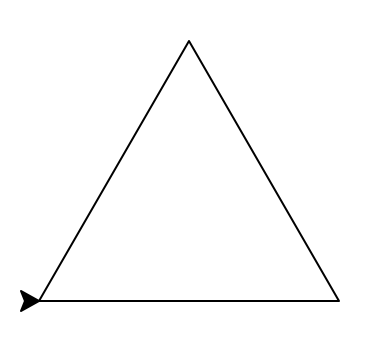
- Test your program and modify until you have a triangle (Hint: you need to modify the number of repetitions --number in parenthesis after range-- and the angle --number in parenthesis after left--). Play around with these numbers, run your modified program, observe and adjust until it draws a triangle. When it does, add comments at the top of your program:
Run your program after editing to make sure you do not have any typos.""" Name: ...your name here... Email: ...your email here... Date: Feburary 3, 2025 This program draws an triangle. """ - Log into Gradescope (see notes above). On the left hand menu, choose
Assignments. From the list, chooseProgram 02: Triangle. In the file upload, drag the .py file you just created and ran, and click "Submit".
4. More Turtle Commands
To review, we introduced the turtle commands:
- forward()
- left()
- right()
There are many more turtle commands. Over the next couple of classes, we will learn more. In addition to the ones that control movement, you can also change the color of the turtle, change the size of the drawing pen, and change the background color (by making a window or screen object, and changing its color).
Note: Your homework programs are graded on a cloud server without a graphics window. As a result, your program is tested using an alternative non-graphics-based turtle package that supports the following subset of turtle commands:
backward, color, colormode, forward, goto, hideturtle, home, left, pendown,
penup, pensize, right, shape, showturtle, speed, stampWhat's Next?
You can start working on this week's homework. The Homework page has problem descriptions, suggested reading, and due dates next to each problem.